You have a bank statement PDF. You need the transactions in a spreadsheet — maybe to import into QuickBooks Online, reconcile in Xero, or just organize your books in Excel.
The problem: PDF is a display format, not a data format. You can't import a PDF directly into any accounting software. You need to convert it to CSV (or Excel) first.
This guide covers three ways to convert a bank statement PDF to CSV, from fully manual to fully automated, so you can pick the method that fits your workflow.
Method 1: Copy and Paste (Manual)
The most basic approach — open the PDF, select the transaction table, and paste it into a spreadsheet.
Steps:
- Open the bank statement PDF in any PDF viewer
- Select the transaction rows (dates, descriptions, amounts)
- Paste into Excel or Google Sheets
- Manually split the data into separate columns
- Clean up formatting issues
- Save as CSV
When this works: You have one or two pages, and you only need to do this once.
When this breaks down:
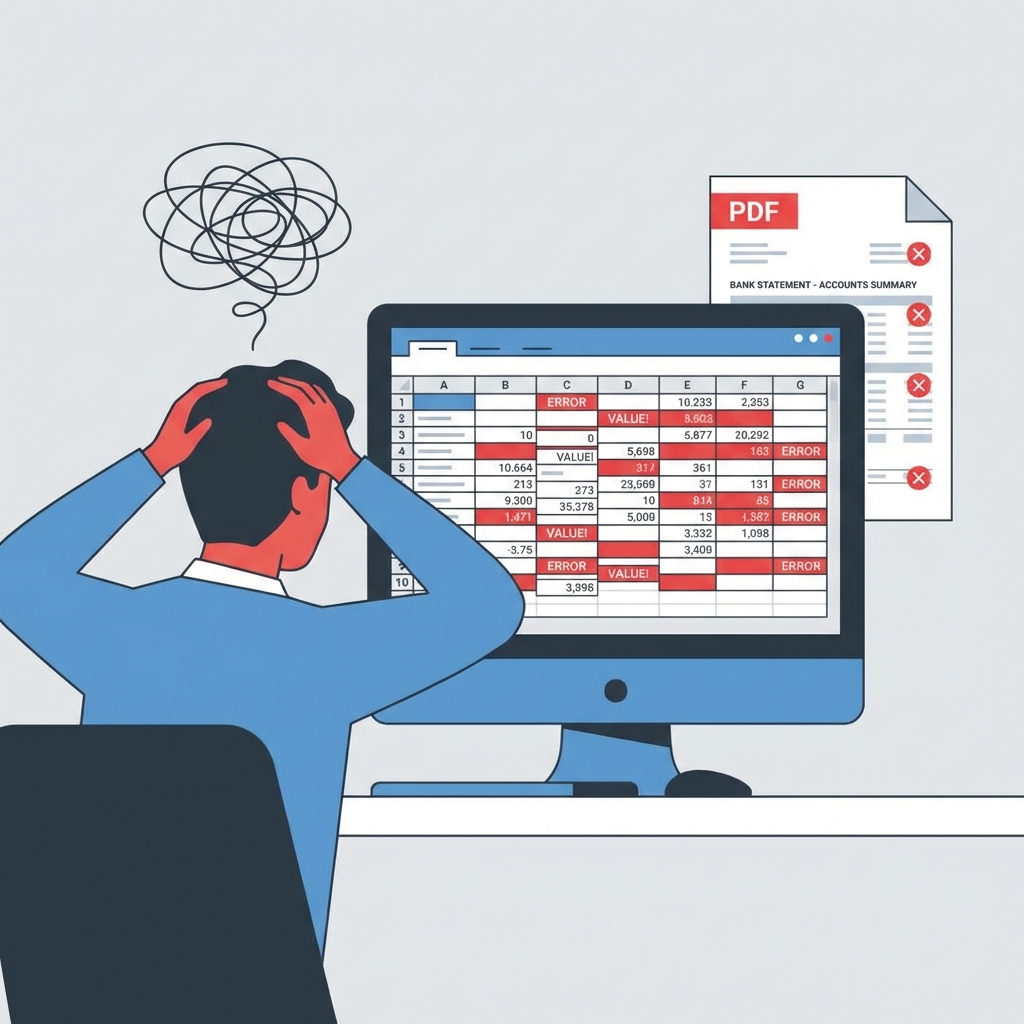
- Columns merge together when pasting — dates, descriptions, and amounts land in the same cell
- Multi-line transaction descriptions wrap unpredictably
- Negative amounts show as parentheses
(150.00)instead of-150.00 - Headers repeat on every page, creating junk rows in your data
- It takes 15–30 minutes per statement, and errors are easy to miss
For a single page, copy-paste is fine. For anything recurring or multi-page, it's not sustainable.
Method 2: Use a Generic PDF to CSV Converter
There are many general-purpose PDF-to-CSV tools online. They work by detecting table structures in any PDF and exporting them as spreadsheet data.
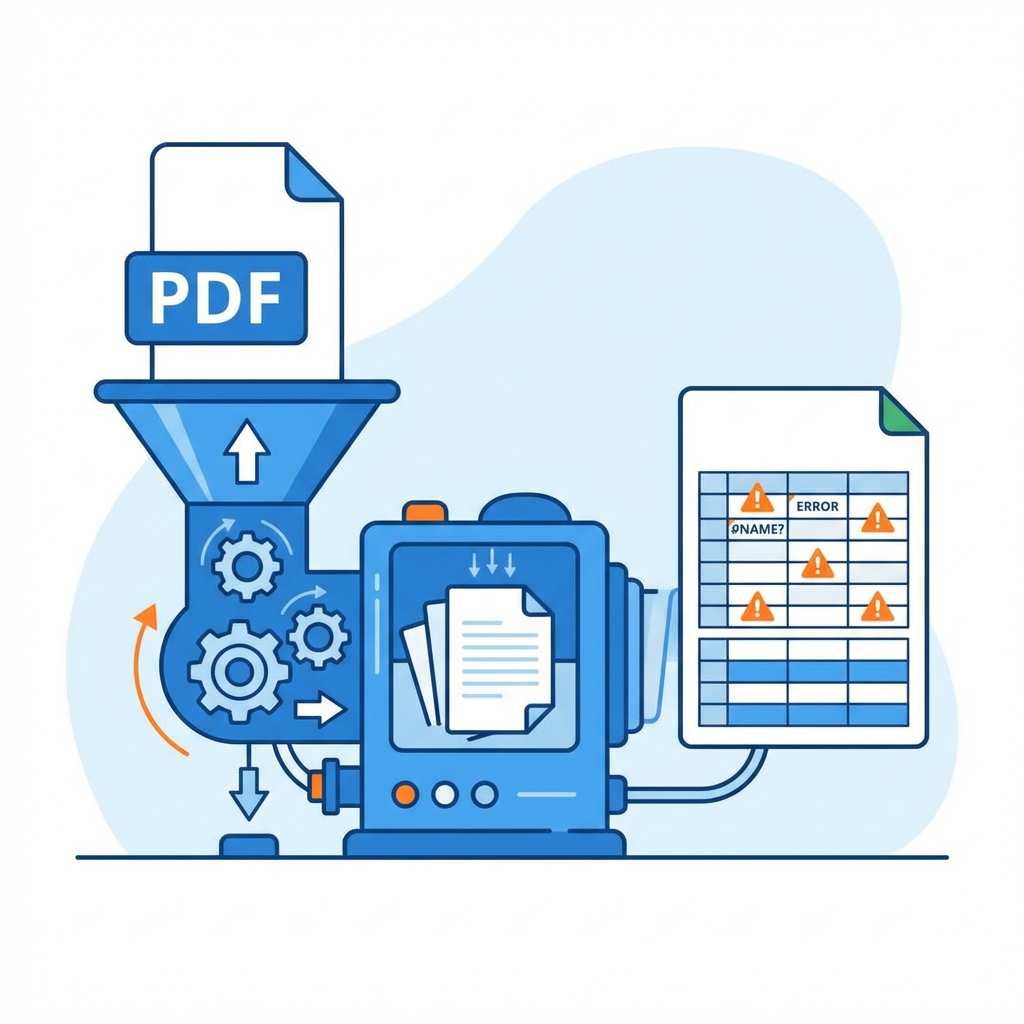
The issue: These tools don't understand bank statements specifically. They see a table, but they don't know which column is the date, which is the description, and which is the amount. The result is usually a CSV that still requires significant manual cleanup:
- Date columns may be split across two cells
- Deposit and withdrawal amounts aren't separated correctly
- Running balance gets mixed into the amount column
- The output doesn't match any accounting software's import format
If you just need raw tabular data and don't mind cleaning it up yourself, a generic converter can save some time compared to copy-paste. But if you need a CSV that's ready to import into QuickBooks Online or Xero, you'll still be doing manual work.
Method 3: Use a Bank Statement-Specific Converter
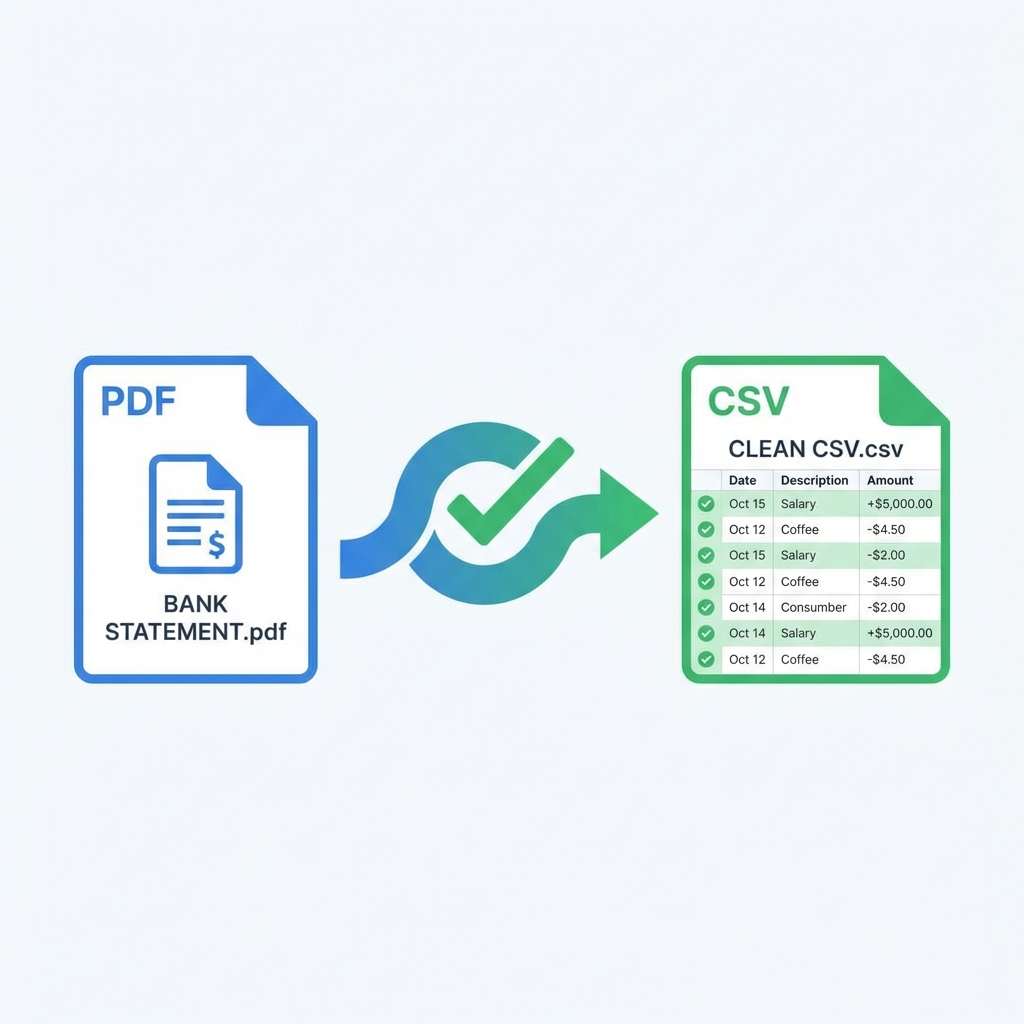
A purpose-built bank statement converter understands the structure of financial documents — it knows what transaction dates, descriptions, credits, debits, and balances look like, and it outputs CSV files that match the exact format your accounting software expects.
Here's how it works with Exact Statement:
-
Upload your PDF — drag and drop any bank statement or credit card statement. Supports files up to 100 MB and 1,000 pages.
-
Transactions are extracted automatically — dates, descriptions, amounts, and balances are identified and structured into rows and columns.
-
Review the results — check the extracted data for accuracy. Flagged rows are highlighted so you can spot edge cases before exporting.
-
Download your CSV or Excel file — choose the format that matches your workflow:
- QuickBooks Online CSV (3-column or 4-column)
- Xero-compatible CSV
- Standard Excel (XLSX) spreadsheet
The key difference: the output is import-ready. No column rearranging, no date reformatting, no manual cleanup.
Which CSV Format Do You Need?
Different accounting platforms expect different CSV layouts. Here's a quick reference:
QuickBooks Online — 3-Column CSV:
| Date | Description | Amount |
|---|---|---|
| 01/15/2026 | Office Depot | -124.50 |
| 01/16/2026 | Client Payment | 3,200.00 |
QuickBooks Online — 4-Column CSV:
| Date | Description | Credit | Debit |
|---|---|---|---|
| 01/15/2026 | Office Depot | 124.50 | |
| 01/16/2026 | Client Payment | 3,200.00 |
Xero CSV:
| Date | Amount | Payee | Description | Reference | Transaction Type |
|---|---|---|---|---|---|
| 01/15/2026 | -124.50 | Office Depot | Store purchase | CHK-4521 | Debit |
Excel (XLSX): Includes all available fields — date, amount, payee, description, reference, transaction type, balance, currency, and account ID. Use this when you want the complete dataset for your own analysis or a non-standard workflow.
Common Pitfalls When Converting Bank Statements
Even with the right tool, watch out for these issues:
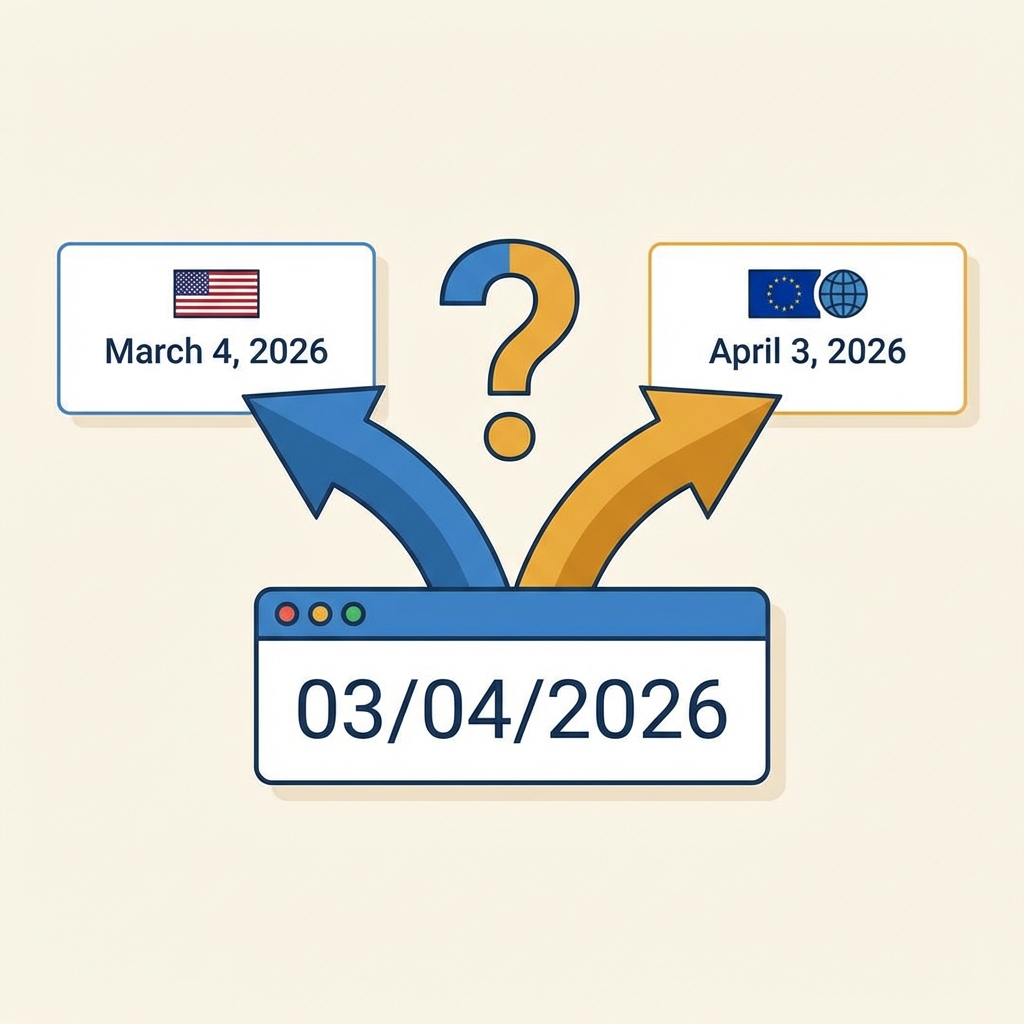
Date format confusion. US statements use MM/DD/YYYY. International statements may use DD/MM/YYYY. If 03/04/2026 appears in your CSV, is that March 4th or April 3rd? Always verify the date format matches what your accounting software expects.
Negative amount conventions. Some banks show withdrawals as (150.00) with parentheses, others use -150.00, and some put debits in a separate column. Make sure your CSV uses the convention your software expects — QuickBooks Online wants a single signed amount column (negative for debits) or separate Credit/Debit columns.
Repeated headers on multi-page PDFs. When a bank statement spans multiple pages, the column headers (Date, Description, Amount, Balance) often repeat at the top of each page. These header rows need to be stripped out, or they'll appear as transaction rows in your CSV.
Password-protected PDFs. Some banks deliver statements as encrypted PDFs. You'll need to unlock the PDF before any converter — manual or automated — can read it. Check your bank's portal for an unprotected download option.
Opening balance vs. transaction rows. Many statements include an opening balance line that isn't a real transaction. If this row makes it into your CSV, it can throw off your reconciliation totals.
Choosing the Right Method
| Copy-Paste | Generic Converter | Bank Statement Converter | |
|---|---|---|---|
| Cost | Free | Free or low cost | Paid (per page) |
| Speed | 15–30 min per statement | 5–10 min + manual cleanup | Under 1 minute |
| Output quality | Needs heavy cleanup | Needs some cleanup | Import-ready |
| QBO/Xero format | Manual column mapping | Manual column mapping | Automatic |
| Best for | One-off, single page | Occasional use, tech-savvy users | Regular processing, accuracy matters |
If you convert bank statements regularly — whether for your own business or for clients — a purpose-built converter pays for itself in time saved on the first batch.
Ready to try it? Convert your first bank statement for free — no sign-up required for your first page.